WhatsApp MCP Server: How to Control WhatsApp from AI Agents (Claude, Cursor & Windsurf)

Alex Rivera
Head of AI Engineering
The Rise of Autonomous AI Agents in Communication
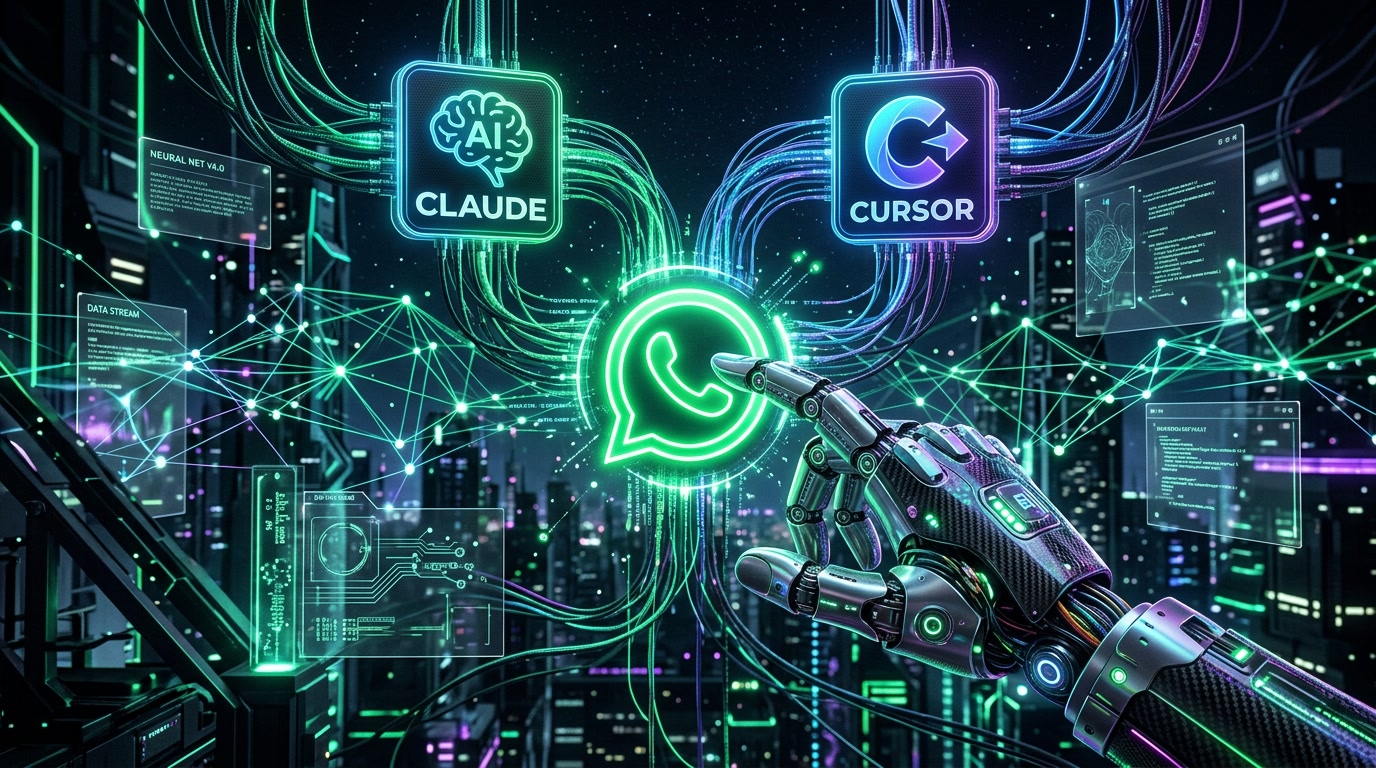
We have officially entered the era of autonomous AI agents. Tools like Claude Desktop, Cursor IDE, and Windsurf are no longer just passive code completion models—they are active copilots capable of executing multi-step workflows across your file system, databases, and third-party APIs.
However, connecting an AI agent to a live communication channel like WhatsApp traditionally required building complex custom REST API wrappers, managing authentication headers, and writing boilerplate code. That changes today with the Model Context Protocol (MCP).
What is the Model Context Protocol (MCP)?
Introduced by Anthropic and rapidly adopted across the AI ecosystem, MCP is an open standard that allows AI agents to securely connect to external tools and data sources. Think of MCP as the "USB-C standard for AI applications"—a universal interface where any compatible agent can instantly discover and call tools exposed by an MCP server.
⚡ Why MCP beats custom REST APIs for AI Agents
- Zero Boilerplate: Your agent reads the tool schemas automatically. No manual API spec parsing required.
- Real-Time Execution: Ask Claude to "Send an OTP to +1234567890" and watch it execute instantly.
- Secure Sandboxing: You retain full control over which tools and permissions your AI agent can access.
How the NexBotix WhatsApp MCP Server Works
NexBotix provides a native HTTP Streamable MCP endpoint right out of the box. Once configured, your AI agent gains access to a rich suite of WhatsApp automation tools:
send_message: Send instant text, media, or interactive button messages to any phone number.send_bulk: Orchestrate bulk promotional campaigns with dynamic variable replacements.get_status: Check real-time delivery, read receipts, and connection health.schedule_message&list_schedules: Automate future communications with precision timing.
Step-by-Step Setup Guide in Claude Desktop & Cursor
Setting up the NexBotix MCP server in your favorite AI environment takes less than two minutes:
- Generate an API Key: Navigate to your NexBotix dashboard under Developer API Access and create a secure API key. Note: Free trials include full MCP access!
- Configure Claude Desktop: Open your
claude_desktop_config.jsonfile and add the NexBotix streamable HTTP endpoint along with yourX-API-Keyheader. - Start Prompting: Restart Claude Desktop. You will now see a hammer icon indicating that WhatsApp tools are loaded and ready for execution.
Real-World Use Case: Automated DevOps Incident Alerting
Imagine your CI/CD pipeline fails at 2 AM. Instead of checking emails, your Cursor AI agent automatically analyzes the build logs, diagnoses the root cause, and uses the send_message MCP tool to ping the on-call engineer on WhatsApp with the exact error trace and a one-click fix link. That is the power of connecting AI agents directly to instant messaging.
Ready to supercharge your AI workflows? Start your free trial on NexBotix today with 10 free bulk messages and experience seamless WhatsApp MCP integration.
Related Topics
Read Next
The Complete Guide to Building an AI-Powered WhatsApp Bot for Business

AI SEO Automation: How Autonomous Bots Fix Technical SEO & Publish Blogs